Easily detect installed email clients and allow the user to choose one when sending an email.
I use it to quickly add a "Contact me" feature in my apps. This will detect a list of SYEmailService, representing:
- native in-app composer
- third party apps
- last resort: copy email address to clipboard, to let your user send via an unsupported app
If there are no items in the list the completion block is called with an error: SYEmailHelperErrorDomain, code SYEmailHelperErrorCode_NoServiceAvailable.
If the use selected a third party app that couldn't be opened an error will be generated too: SYEmailHelperErrorCode_CouldntOpenApp.
If a single supported service is available it will automatically be launched.
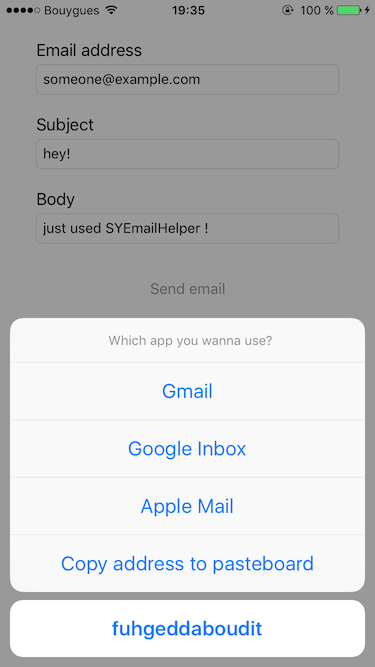
If multiple supported services are available an action sheet will be displayed.
You can:
- disable the "copy to pasteboard" option
- change the text for "copy to pasteboard" option
- change the text for "cancel" option
Example:
    PasteboardEmailService.name = "Copy email address to pasteboard"

    EmailHelper.shared.showCopyToPasteBoard = true
    EmailHelper.shared.actionSheetTitle = "Which app you wanna use?"
    EmailHelper.shared.actionSheetMessage = "We support some third party apps, native email client and copying to clipboard if your favorite app is not supported"
    EmailHelper.shared.actionSheetCancelButtonText = "Meh..."

    EmailHelper.shared.presentActionSheet(
        address: emailField.text,
        subject: subjectField.text,
        body: bodyField.text,
        presentingViewController: self,
        sender: sender)
    { (canceled, service, error) in
        if (canceled) {
            self.completionLabel.text = "User cancelled"
        }
        else if let service = service, let error = error {
            self.completionLabel.text = String(format: "Service %@ encountered error: %@", service.name, error.localizedDescription)
        }
        else if let error = error {
            self.completionLabel.text = String(format: "Encountered error: %@", error.localizedDescription)
        }
        else if let service = service {
            self.completionLabel.text = String(format: "No error, used service %@", service.name)
        }
    }
- Add the following to your project Podfile:
pod 'SYEmailHelper', '~> 2.2.0'-
Open a new terminal
-
cdto the root of your project directory -
run
pod installfrom the command line
- Open your project and click on the project name in project navigator
- Under the “Project” section click your project name, then click “Package Dependecies”
- Click the “+” button, and search for
https://github.com/dvkch/SYEmailHelper.git - Once the package is found, be sure to select “exact version” and enter version number “2.2.0”
- Press enter and the package will be downloaded and integrated into your Xcode Project
At the top of any .swift file in your project add:
import SYEmailHelperDon't forget ============
You'll need to add the list of supported apps inside your Info.plist. Here are the needed items for the current list of supported apps.
<key>LSApplicationQueriesSchemes</key>
<array>
	<string>googlegmail</string>
	<string>inbox-gmail</string>
	<string>ms-outlook</string>
	<string>readdle-spark</string>
</array>
You can open both SPM and Cocoapods example projects, as well as the package itself, by opening the repo workspace.
Simply:
-
Clone this repository
-
Open the repository folder
-
Open the
SYEmailHelper.xcworkspacewith Xcode, which is located in the root directory of this repo
MPL-2.0
-- dvkch