

A powerful, interactive terminal-based viewer/editor for CSV/TSV/Excel/Parquet/Vortex/JSON/NDJSON built with Python, Polars, and Textual. Inspired by VisiData, this tool provides smooth keyboard navigation, data manipulation, and a clean interface for exploring and analyzing tabular data directly in terminal with multi-tab support for multiple files!
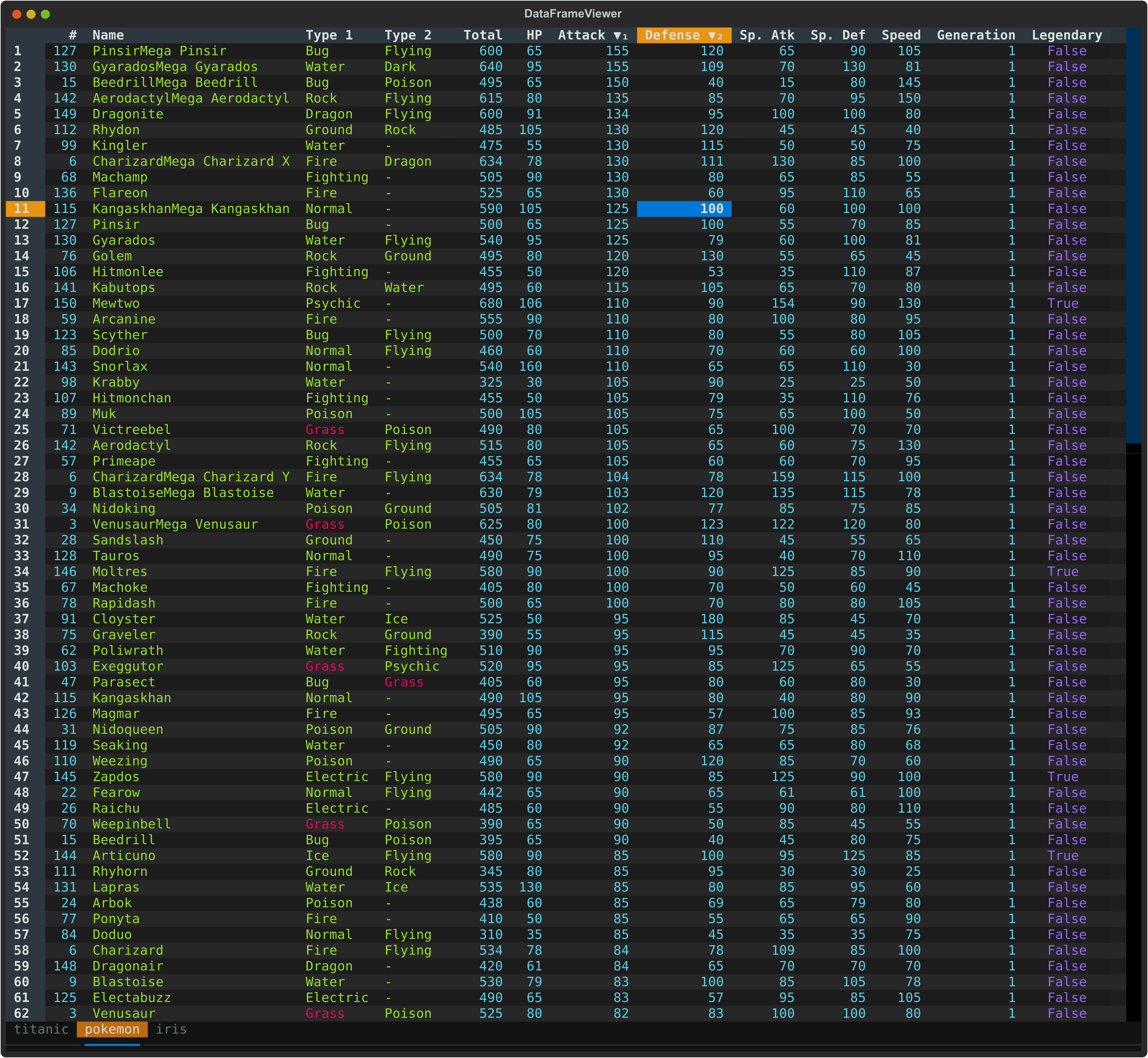
- 🚀 Fast Loading - Powered by Polars for efficient batch data handling
- 🎨 Rich Terminal UI - Beautiful, color-coded columns with various data types (e.g., integer, float, string)
- ⌨️ Comprehensive Keyboard Navigation - Intuitive controls
- 📊 Flexible Input - Read from files and/or stdin (pipes/redirects)
- 🔄 Smart Pagination - Lazy load rows on demand for handling large datasets
- 📝 Data Editing - Edit cells, delete rows, remove columns, and explode columns
- 🧹 Duplicate Removal - Remove duplicate rows
- 🔍 Search & Filter - Find values, highlight matches, and filter selected rows
↔️ Column/Row Reordering - Move columns and rows with simple keyboard shortcuts- 📈 Sorting & Statistics - Multi-column sorting, frequency distribution, and histogram analysis
- 💾 Save & Undo - Save edits back to file with full undo/redo support
- 📂 Multi-File Support - Open multiple files in separate tabs
- 🔄 Tab Management - Seamlessly switch between open files with keyboard shortcuts
- 📑 Duplicate Tab - Create a copy of the current tab with the same data
- 🐍 Embedded Python Console - Inspect and transform the active table with
dfandpldirectly in-app - 📌 Freeze Rows/Columns - Keep important rows and columns visible while scrolling
- 🎯 Cursor Type Cycling - Switch between cell, row, and column selection modes
- 📸 Take Screenshot - Capture terminal view as a SVG image
# Install from PyPI
pip install dataframe-textual
This installs an executable dv.
Using uv
# Install as a tool
uv tool install dataframe-textual

# Quick run using uvx without installation
uvx https://github.com/need47/dataframe-textual.git <csvfile># Clone the repository
git clone https://github.com/need47/dataframe-textual.git
cd dataframe-textual
# Install from local source with development dependencies
pip install -e ".[dev]"# Open one file
dv pokemon.csv# Open multiple files in tabs
dv file1.csv file2.csv file3.csv
# Open multiple sheets in an Excel file as separate tabs
dv file.xlsx
# Mix files and stdin
dv data1.tsv < data2.tsv# Read all parquet files (must be of same format and same structure) into one single table
dv *.parquet --all-in-oneusage: dv [-h] [-V] [-d DELIMITER] [-f FORMAT] [-F [FIELDS ...]] [-H [HEADER ...]] [-L [N]] [-I] [-T] [-E] [-C [C]] [-Q [C]] [-K N] [-A N] [-M [N]] [-N NULL [NULL ...]] [--theme [THEME]] [--all-in-one]
[--expr EXPR] [--sql SQL] [-o OUTPUT]
[files ...]
TUI viewer/editor for tabular data (e.g., CSV/Excel).
positional arguments:
files Files to view (or read from stdin)
options:
-h, --help show this help message and exit
-V, --version show program's version number and exit
-d, --delimiter DELIMITER
Specify the delimiter of the input files (must be a single character, e.g., `|` or `;`). By default, the delimiter is inferred from the file extension. If reading from stdin, the
delimiter must be specified unless it is tab delimited.
-f, --format FORMAT Specify the format of the input files (e.g., `csv` or `excel`). By default, the format is inferred from the file extension. If reading from stdin, the format must be specified
unless it is tab delimited.
-F, --fields [FIELDS ...]
When used without values, list available fields. Otherwise, read only specified fields.
-H, --header [HEADER ...]
Specify header info. When reading CSV/TSV. If used without values, assumes no header. Otherwise, use provided values as column header (e.g., `-H col1 col2 col3`).
-L, --infer_schema_length [N]
Number of rows to use for inferring schema when reading CSV/TSV. Defaults to 100. When used without value, uses all rows for schema inference (can be slow for large files).
-I, --no-inference Do not infer data types when reading CSV/TSV. All values will be of string type.
-T, --truncate-ragged-lines
Truncate ragged lines when reading CSV/TSV
-E, --ignore-errors Ignore errors when reading CSV/TSV
-C, --comment-prefix [C]
Skip comment lines starting with `C` when reading CSV/TSV
-Q, --quote-char [C] Use `C` as quote character for reading CSV/TSV. When used without value, disables special handling of quote characters.
-K, --skip-lines N Skip first N lines when reading CSV/TSV
-A, --skip-rows-after-header N
Skip N rows after header when reading CSV/TSV
-M, --n-rows [N] Read maximum rows
-N, --null NULL [NULL ...]
Values to interpret as null values when reading CSV/TSV
--theme [THEME] Set the theme for the application. If used without value, show available themes.
--all-in-one, --aio, --one
Read all files (must be of same format and same structure) into one single table.
--expr EXPR Specify a Polars expression to filter data (e.g., $age > 30)
--sql SQL Specify a SQL query to execute on the input file (e.g., to select and filter data)
-o, --output OUTPUT Output file (optionally modified) with specified format, which is inferred from file extension (e.g., .csv, .xlsx).
# Open a file
dv data.csv

# Gzipped files are supported
dv data.csv.gz

# Read from stdin (defaults to TSV)
cat data.tsv | dv
dv < data.tsv

# Specify delimiter
dv data.txt -d '|'

# Specify format
dv data.json -f ndjson

# View headless CSV file
dv data_no_header.csv -H

# View headless CSV file with provided header
dv data_no_header.csv -H country ip requests

# Skip first 3 rows (e.g., metadata)
dv data_with_meta.csv -K 3

# Skip 1 row after header (e.g., units row)
dv data_with_units.csv -A 1

# Skip 3 rows before header and 1 row after
dv messy_scientific_data.csv -K 3 -A 1

# Skip comment lines (or just -C)
dv commented_data.csv -C '#'

# Disable type inference for faster loading
dv large_data.csv -I

# Ignore parsing errors in malformed CSV
dv data_with_errors.csv -E

# Treat specific values as null (e.g., 'NA', 'N/A')
dv data.csv -N NA N/A

# Use different quote character (e.g., single quote for CSV)
dv data.csv -Q "'"

# Disable quote character processing for TSV with embedded quotes
dv data.tsv -Q

# Choose the `monokai` theme
dv data.csv --theme monokai

# Show column headers
dv data.csv -F

# Read only specific columns: 'name', 'age', first column, and last column
dv data.csv -F name age 1 -1

# Read all files (must be of same format and same structure) into one single table
dv data-1.csv data-2.csv --all-in-one

# Filter rows before opening the TUI using a Polars expression
dv data.csv --expr '$age > 30'

# Filter data using SQL query (use 'self' as the table name)
dv data.csv --sql 'SELECT * FROM self WHERE age > 30'

# Convert to other format
dv data.csv -o data.parquet| Key | Action |
|---|---|
q |
Quit current tab (prompts to save unsaved changes) or view |
Q |
Quit all tabs then app (prompts to save unsaved changes) |
Ctrl+Q |
Force to quit app (discards unsaved changes) |
Esc |
Force to quit current tab (discards unsaved changes) or view |
Space |
Toggle tab bar visibility |
b |
Next tab |
B |
Previous tab |
> |
Move current tab right (wrap to first) |
< |
Move current tab left (wrap to last) |
Ctrl+T |
Save current tab to file |
Ctrl+S |
Save all tabs to file |
Ctrl+V |
Save current view to file |
w |
Save current tab to file (overwrite without prompt) |
W |
Save all tabs to file (overwrite without prompt) |
Ctrl+D |
Duplicate current tab |
Ctrl+O |
Open file in a new tab |
Ctrl+N |
Create new tab from Polars expression |
Double-click |
Rename tab |
Tips:
- Tabs with unsaved changes are indicated with a bright background
- Closing a tab with unsaved changes triggers a save prompt
- Use
Escto bypass save prompts and quit the current tab/view immediately
| Key | Action |
|---|---|
F1 |
Toggle help panel |
k |
Select theme |
` (backtick) |
Toggle Python console |
Ctrl+P -> Screenshot |
Capture terminal view as a SVG image |
| Key | Action |
|---|---|
g |
Go to first row |
G |
Go to last row |
Ctrl + G |
Go to specific row |
↑ / ↓ |
Move up/down one row |
← / → |
Move left/right one column |
Home / End |
Go to first/last column |
Ctrl + Home / Ctrl + End |
Go to page top/bottom |
PageDown / PageUp |
Scroll down/up one page |
Ctrl+F |
Page forward |
Ctrl+B |
Page backforward |
| Key | Action |
|---|---|
u |
Undo last action |
U |
Redo last undone action |
Ctrl+U |
Reset to initial state |
| Key | Action |
|---|---|
Enter |
Show details for the current row as two-column key–value pairs |
Tab |
Show current cell details; press Tab again there to drill deeper |
F |
Show frequency distribution for current column |
i |
Show histogram for current column |
I |
Show histogram for current column with custom bins |
s |
Show statistics for current column |
S |
Show statistics for entire dataframe |
= |
Show histogram using first column as label and current column as value |
m |
Show metadata for columns (e.g., data types) |
K |
Cycle cursor types: cell → row → column → cell |
~ |
Toggle row labels |
_ (underscore) |
Toggle column full width |
+ |
Toggle freeze rows and/or columns |
, |
Toggle thousand separator for numeric display |
^ |
Toggle internal row index column (RID) |
& |
Set current row as the new header row |
h |
Hide current column |
H |
Show all hidden columns |
| Key | Action |
|---|---|
Double-click |
Edit cell or rename column header |
Delete |
Clear current cell (set to NULL) |
Shift+Delete |
Clear current column (set matching cells to NULL) |
e |
Edit current cell (respects data type) |
E |
Edit entire column with value/expression |
a |
Add empty column after current |
A |
Add column with name and value/expression |
@ |
Add a link column from URL template |
- (minus) |
Delete current column |
x |
Delete current row |
X |
Delete current row and all those below |
Ctrl+X |
Delete current row and all those above |
d |
Duplicate current column |
D |
Duplicate current row |
Ctrl+Delete |
Remove duplicate rows (keep first occurrence) |
o |
Explode current list column into multiple rows |
O |
Explode current string column by delimiter into multiple rows |
| Key | Action |
|---|---|
\ |
Select rows wth cell matches or those matching cursor value in current column |
| (pipe) |
Select rows by expression |
{ |
Go to previous selected row |
} |
Go to next selected row |
' (single quote) |
Select/deselect current row |
t |
Toggle row selections (invert) |
T |
Clear all row selections and/or cell matches |
| Key | Action |
|---|---|
/ |
Find across all columns with cursor value and highlight matching cells |
? |
Find across all columns with expression and highlight matching cells |
; |
Find in current column with cursor value and highlight matching cells |
: |
Find in current column with expression and highlight matching cells |
n |
Go to next matching cell |
N |
Go to previous matching cell |
r |
Find and replace in current column (interactive or replace all) |
R |
Find and replace across all columns (interactive or replace all) |
| Key | Action |
|---|---|
v |
Basic filter using the current cell value |
V |
Advanced filter with value or expression |
. |
Filter rows with non-null values in the current column |
f |
Filter rows using values in the current column |
" (double quote) |
Collect rows to a new tab |
| Key | Action |
|---|---|
[ |
Sort current column ascending |
] |
Sort current column descending |
| Key | Action |
|---|---|
Shift+↑ |
Move current row up |
Shift+↓ |
Move current row down |
Shift+← |
Move current column left |
Shift+→ |
Move current column right |
| Key | Action |
|---|---|
# |
Cast current column to integer (Int64) |
% |
Cast current column to float (Float64) |
! |
Cast current column to boolean |
$ |
Cast current column to string |
| Key | Action |
|---|---|
c |
Copy current cell to clipboard |
Ctrl+C |
Copy column to clipboard |
Ctrl+R |
Copy row to clipboard (tab-separated) |
| Key | Action |
|---|---|
l |
Simple SQL interface (select columns & where clause) |
L |
Advanced SQL interface (full SQL query with syntax highlight) |
Columns are automatically styled based on their data types:
| Data Type | Text Color | Alignment |
|---|---|---|
| integer | Cyan | right |
| float | Yellow | right |
| string | Green | left |
| boolean | Blue | centered |
| temporal | Magenta | centered |
Hide/Show Columns (h / H):
h- Temporarily hide current column (data preserved)H- Restore all hidden columns
Freeze Rows and Columns (+):
- Toggle frozen rows and/or columns to keep important headers and fields visible while scrolling
Thousand Separator Toggle (,):
- Applies to integer and float columns
- Formats large numbers with commas for readability (e.g.,
1000000→1,000,000) - Works across all numeric columns in the table
- Toggle on/off as needed for different viewing preferences
- Display-only: does not modify underlying data in the dataframe
Cursor Type Cycling (K):
- Cycles through cell, row, and column selection modes
- Use it to switch between inspecting a single cell, an entire row, or an entire column
Press Enter on any row to open a modal showing all column values for that row.
Useful for examining wide table where columns don't fit well on screen.
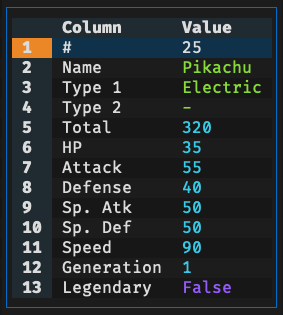
In the Row Detail Modal:
- Press
vto filter all rows containing the selected column value - Press
"to collect all rows containing the selected column value to a new tab - Press
{to move to the previous row - Press
}to move to the next row - Press
Fto show the frequency table for the selected column - Press
sto show the statistics table for the selected column - Press
Tabto open a cell-detail modal for the selected field - Press
qorEscapeto close the modal
Press Tab in the main table to inspect the current cell in its own modal.
You can also press Tab from the Row Detail modal to drill into the selected field.
Inside the cell-detail modal, press Tab again on the selected row/column to keep drilling into nested values.
- Scalar values are displayed inline. For long text, press
Tabagain to view the full content in a multi-line modal. - String values are split into multiple rows using
|by default - List-like values are expanded into a one-column table
- Dict-like values are shown as key/value columns
- Press
qorEscapeto close the modal
The application provides multiple modes for selecting rows (marks it for filtering or collecting):
\- Select rows with cell matches or those matching cursor value in current column (respects data type)|- Opens dialog to select rows with custom expression'- Select/deselect current rowt- Flip selections of all rowsT- Clear all row selections and cell matches{- Go to previous selected row}- Go to next selected row
Advanced Options:
When searching or finding, you can use checkboxes in the dialog to enable:
- Match option
Nocasefor case-insensitive matching - Match option
Wholeto match full text - Match option
Literalto ignore special regex characters - Match option
Reverseto perform reverse match
These options work with plain text searches. Use Polars regex patterns in expressions for more control. For example, use (?i) prefix in regex (e.g., (?i)john) for case-insensitive matching.
Quick Tips:
- Search results highlight matching rows in red
- Use expression for advanced selection (e.g., $attack > $defense)
- Type-aware matching automatically converts values. Resort to string comparison if conversion fails
- Use
uto undo any search or filter
Find by value/expression and highlight matching cells:
/- Find cursor value across all columns (global search)?- Open dialog to search all columns with expression (global search);- Find cursor value within current column (respects data type):- Open dialog to search current column with expressionn- Go to next matching cellN- Go to previous matching cell
Replace values in current column (r) or across all columns (R).
How It Works:
When you press r or R, enter:
- Find term: Value or expression to search for (done by string value)
- Replace term: Replacement value
- Matching options:
Nocasefor case-insensitive matchingWholeto match full textLiteralto ignore special regex charactersReverseto perform reverse match
- Replace mode: All at once or interactive review
Replace All:
- Replaces all matches with one operation
- Shows confirmation with match count
Replace Interactive:
- Review each match one at a time (confirm, skip, or cancel)
- Shows progress
Tips:
- Search are done by string value (i.e., ignoring data type)
- Type
NULLto find or replace null values - Support undo (
u)
Both actions work on a subset of the original dataframe, but they serve different workflows.
Filtering options:
Basic Filter (v):
- Opens the chose subset as a derived view inside the current workflow
- Edits made in the filtered view still apply to the original dataframe
- Press
Ctrl+Vto save the current view to a file - Press
qto leave the filtered view and return to the main table - Supports undo with
u
Advanced Filter (V):
- Opens a dialog for value-based or expression-based filtering
- Useful when you want to define the subset directly
Column Filter (f):
- Opens a type-aware filter dialog for the current column
- Numeric columns support
=,!=,<,<=,>=, and> - String columns support exact match, prefix, suffix, contains, and regex matching
- Boolean columns support true, false, and null filtering
- Temporal columns support the same comparison operators as numeric columns
- List columns support exact-list matching and item membership checks such as "contains"
Collect ("):
- Creates a separate tab containing only the chosen rows
- The collected tab is independent from the source dataframe
- Edits in the collected tab do not modify the original table
For Basic Filter (v) and Collect ("), rows are chosen in this order:
- Use selected rows if any are present
- Otherwise, use rows with active matches from search or find
- Otherwise, use rows whose current-column value matches the current cell
Complex values, filters, and advanced operations can be specified via Polars expressions, with the following adaptions for convenience:
Column References:
$_- Current column (based on cursor position)$1,$2, etc. - Column by 1-based index$age,$salary- Column by name (use actual column names)$`col name`- Column by name with spaces (backtick quoted)
Row References:
$#- Current row index (1-based)
DataFrame References:
self- Current dataframe
Basic Comparisons:
$_ > 50- Current column greater than 50$salary >= 100000- Salary at least 100,000$age < 30- Age less than 30$status == 'active'- Status exactly matches 'active'$name != 'Unknown'- Name is not 'Unknown'$# <= 10- Top 10 rows
Logical Operators:
&- AND|- OR~- NOT
Practical Examples:
($age < 30) & ($status == 'active')- Age less than 30 AND status is active($name == 'Alice') | ($name == 'Bob')- Name is Alice or Bob$salary / 1000 >= 50- Salary divided by 1,000 is at least 50($department == 'Sales') & ($bonus > 5000)- Sales department with bonus over 5,000($score >= 80) & ($score <= 90)- Score between 80 and 90~($status == 'inactive')- Status is not inactive$revenue > $expenses- Revenue exceeds expenses$`product id` > 100- Product ID with spaces in column name greater than 100self.drop(RID).is_duplicated()- Duplicate rows (note: the internal RID column must be excluded)
String Operations: (Polars string API reference)
$name.str.contains("John")- Name contains "John" (case-sensitive)$name.str.contains("(?i)john")- Name contains "john" (case-insensitive)$email.str.ends_with("@company.com")- Email ends with domain$code.str.starts_with("ABC")- Code starts with "ABC"$name.str.len_chars() < 7- Length of name shorter than 7
Number Operations:
$age * 2 > 100- Double age greater than 100($salary + $bonus) > 150000- Total compensation over 150,000$percentage >= 50- Percentage at least 50%
Null Handling:
$column.is_null()- Find null values$column.is_not_null()- Find non-null valuesNULL- a value to represent null for convenience
Tips:
- Use column indices (e.g.,
$1,$2) for faster column access. - Use column names that match exactly (case-sensitive)
- Use parentheses to clarify complex expressions:
($a & $b) | ($c & $d)
- Press
[to sort current column ascending - Press
]to sort current column descending - Multi-column sorting supported (press multiple times on different columns)
- Press same key twice to remove the current column from sorting
View quick metadata about your columns to understand their structure and content.
Column Metadata (m):
- Press
mto open a modal displaying details for all columns:- Column - Column name
- Type - Data type (e.g., Int64, String, Float64, Boolean)
In the Column Metadata Table
- Press
Fto show the frequency table for the selected column - Press
sto show the statistics table for the selected column
In Metadata Modals:
- Press
qorEscapeto close
Press F to see value distributions of the current column. The modal shows:
- Value, Count, Percentage, Histogram
- Total row at the bottom
In the Frequency Modal:
- Press
[and]to sort by any column (value, count, or percentage) - Press
vto filter all rows containing the selected value - Press
"to collect all rows containing the selected value to a new tab - Press
,to toggle thousand separator for numeric values - Press
gto scroll to top - Press
Gto scroll to bottom - Press
Ctrl+Sto save the frequency table to file - Press
qorEscapeto close the modal
This is useful for:
- Understanding value distributions
- Quickly filtering to specific values
- Identifying rare or common values
- Finding the most/least frequent entries
Show summary statistics such as count, null count, mean, median, standard deviation, min, and max using Polars' describe() method.
sshows statistics for the current column, with an additionalsumfield for numeric columnsSshows statistics for all columns in the dataframe
In the Statistics Modal:
- Use arrow keys to navigate
- Press
qorEscapeto close the modal
This is useful for:
- Understanding data distributions and overall column behavior
- Identifying outliers and anomalies
- Checking data quality quickly
- Reviewing summary statistics without leaving the TUI
- Comparing columns at a glance
Edit Cell (e or Double-click):
- Opens modal for editing current cell
- Validates input based on column data type
Rename Column Header (Double-click column header):
- Quick rename by double-clicking the column header
Delete Row (x):
- Delete all selected rows (if any) at once
- Or delete single row at cursor
Delete Row and Below (X):
- Deletes the current row and all rows below it
- Useful for removing trailing data or the end of a dataset
Delete Row and Above (Ctrl+X):
- Deletes the current row and all rows above it
- Useful for removing leading rows or the beginning of a dataset
Delete Column (-):
- Removes the entire column from display and dataframe
Add Empty Column (a):
- Adds a new empty column after the current column
- Column is initialized with NULL values for all rows
Add Column with Value/Expression (A):
- Opens dialog to specify column name and initial value/expression
- Value can be a constant (e.g.,
0,"text") or a Polars expression (e.g.,$age * 2) - Expression can reference other columns and perform calculations
- Useful for creating derived columns or adding data with formulas
Duplicate Column (d):
- Creates a new column immediately after the current column
- New column has '_copy' suffix (e.g., 'price' → 'price_copy')
- Useful for creating backups before transformation
Duplicate Row (D):
- Creates a new row immediately after the current row
- Duplicate preserves all data from original row
- Useful for batch adding similar records
Remove Duplicate Rows (Ctrl+Delete):
- Removes duplicated rows while keeping the first occurrence
- Compares row values across the visible columns
- Useful for quick deduplication before further editing, collecting, or exporting
- Supports undo with
u
Move Columns: Shift+← and Shift+→
- Swaps adjacent columns
- Reorder is preserved when saving
Move Rows: Shift+↑ and Shift+↓
- Swaps adjacent rows
- Reorder is preserved when saving
The application provides separate save actions for the current tab, all tabs, and the current filtered view.
Save Current Tab (Ctrl+T):
- Saves the active tab to file
- Useful when you want to export only the dataframe you are currently working on
Save All Tabs (Ctrl+S):
- Saves every open tab to file
- Useful after editing multiple datasets in the same session
Save Current View (Ctrl+V):
- Saves only the current filtered or derived view to file
- Useful for exporting a subset without replacing the source dataframe
The output format is determined by the file extension, making it easy to convert between formats such as CSV, TSV, Parquet, or Excel.
Undo (u):
- Reverts last action with full state restoration
- Works for edits, deletions, sorts, searches, etc.
- Shows description of reverted action
Redo (U):
- Reapplies the last undone action
- Restores the state before the undo was performed
- Useful for redoing actions you've undone by mistake
- Useful for alternating between two different states
Reset (Ctrl+U):
- Reverts all changes and returns to original data state when file was first loaded
- Clears all edits, deletions, selections, filters, and sorts
- Useful for starting fresh without reloading the file
Press the type conversion keys to instantly cast the current column to a different data type:
Type Conversion Shortcuts:
#- Cast to integer%- Cast to float!- Cast to boolean$- Cast to string
Features:
- Instant conversion with visual feedback
- Full undo support - press
uto revert - Leverage Polars' robust type casting
Note: Type conversion attempts to preserve data where possible. Conversions may lose data (e.g., float to int rounding).
The SQL interface provides two modes for querying your dataframe:
SELECT specific columns and apply WHERE conditions without writing full SQL:
- Choose which columns to include in results
- Specify WHERE clause for filtering
- Ideal for quick filtering and column selection
Execute complete SQL queries for advanced data manipulation:
- Write full SQL queries with standard SQL syntax
- Access to all SQL capabilities for complex transformations
- Always use
selfas the table name - Syntax highlighted
Examples:
-- Filter and select specific rows and/or columns
SELECT name, age
FROM self
WHERE age > 30

-- Use backticks (`) for column names with spaces
SELECT *
FROM self
WHERE `product id` = 7Copies value to system clipboard with pbcopy on macOS and xclip on Linux.
Note: may require a X server to work.
- Press
cto copy cursor value - Press
Ctrl+Cto copy column values - Press
Ctrl+Rto copy row values (delimited by tab) - Hold
Shiftto select with mouse
Press @ to create a new column containing dynamically generated URLs using template. Links are typically clickable in a terminal emulator using Ctrl+Click.
Template Placeholders:
The link template supports multiple placeholder types for maximum flexibility:
-
$_- Current column (the column where cursor was when@was pressed), e.g.,https://example.com/search/$_- Uses values from the current column -
$1,$2,$3, etc. - Column by 1-based position index, e.g.,https://example.com/product/$1/details/$2- Uses 1st and 2nd columns -
$name- Column by name (use actual column names), e.g.,https://example.com/$region/$city/data- Usesregionandcitycolumns
Features:
- Multiple Placeholders: Mix and match placeholders in a single template
- URL Prefix: Automatically prepends
https://if URL doesn't start withhttp://orhttps://
Tips:
- Use full undo (
u) if template produces unexpected URLs - For complex multi-column URLs, use column names (
$name) for clarity over positions ($1)
Use the built-in Python console for quick interactive transformations without leaving the TUI.
- Open/close console:
` - Run shell commands: prefix with
!(example:!ls) - In console:
clearorclsclears console output - In console:
Esccloses the console panel - Available names:
df(active DataFrame),self(active table),app(viewer app),pl(Polars) - Assign a DataFrame or Series back to
dfto refresh the current table immediately
Most loading failures come from malformed CSV/TSV input, quoting issues, or mixed column types. When this happens, the application prints a hint with a suggested retry option.
Common fixes:
- Use
-Qif quote characters are mismatched, improperly escaped, or should be ignored entirely - Use
-Twhen rows contain more fields than expected and you want to truncate ragged lines - Use
-Lto increase the number of rows used for schema inference when early rows do not represent the full column types - Use
-Ito disable type inference and read CSV/TSV values as strings - Check the delimiter and format options if the input appears empty or unreadable
- Use
-Eas a last resort to ignore recoverable parsing errors
Typical cases:
Malformed CSV or broken quoting:
- Symptom: errors mentioning malformed CSV, mismatched quotes, or improperly escaped fields
- Try:
-Qto disable quoting or choose a different quote character
Ragged lines or inconsistent field counts:
- Symptom: errors saying the input has more fields than defined in the schema
- Try:
-Tto truncate ragged lines
Mixed data types in one column:
- Symptom: errors saying a value could not be parsed as an integer, float, or other inferred type at a specific column
- Try:
-Lfirst, then-Iif the column is genuinely mixed
No data could be loaded:
- Symptom: errors indicating that no data was available to load
- Check: whether the file is empty, the format is correct, and the delimiter matches the input
Fallback option:
- If none of the above helps and the file is mostly usable, retry with
-Eto ignore parsing errors
Examples:
# Disable quote handling when CSV quoting is broken
dv bad.csv -Q

# Truncate ragged lines
dv messy.tsv -T

# Increase schema inference depth
dv mixed_types.csv -L 1000

# Disable type inference entirely
dv mixed_types.csv -I

# Ignore recoverable parsing errors
dv partially_broken.csv -E- polars: Fast DataFrame library for data loading/processing
- textual: Terminal UI framework
- fastexcel: Read Excel files
- xlsxwriter: Write Excel files
- vortex-data: Read/Write Vortex files
- Python 3.11+
- POSIX-compatible terminal (macOS, Linux, WSL)
- Terminal supporting ANSI escape sequences and mouse events